Dynamics 365 Business Central 2026 Wave 1 (BC Version 28): Manage Database Index Usage, Turn Index Off and On.
Hi Folks,
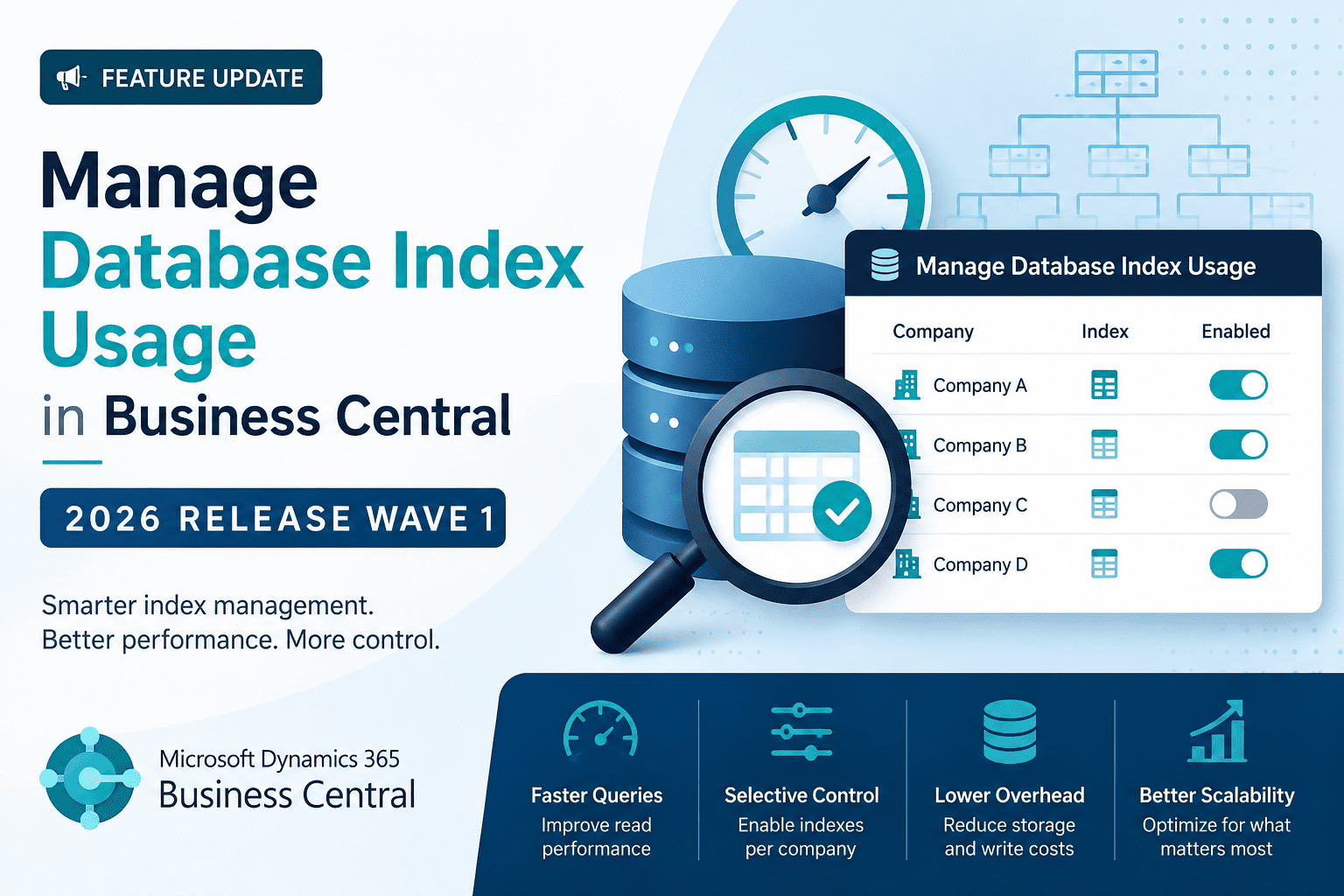
With Dynamics 365 Business Central 2026 Wave 1 (Version 28), Microsoft introduces Manage Database Index Usage, which helps administrators and developers now gain greater flexibility and control over how database indexes are utilized across companies.
This new capability helps organizations strike the right balance between query performance and database maintenance overhead, especially in environments with multiple companies and varying functional requirements.
Understanding Database Indexes in Business Central:
A database index is a structure designed to improve the speed of data retrieval operations such as:
- Searching records
- Filtering datasets
- Sorting results
- Aggregating information
Indexes work by organizing one or more fields in a table so that the database engine—whether SQL Server for on-premises deployments or Azure SQL for online environments—can quickly locate the required rows.
Without an index, the database must scan the entire table to find matching records. As tables grow larger, this becomes increasingly expensive and slower. With a properly designed index, the database can directly seek the relevant records, dramatically improving performance.
For example:
- Searching items by Item No.
- Filtering ledger entries by Posting Date
all become significantly faster when supported by suitable indexes.
Performance vs Maintenance: While indexes improve read performance, they also introduce maintenance costs. Excess index can slow down create, read, update, delete (CRUD) operations as every time index must be kept up to date.
This means excessive or unnecessary indexes can lead to:
- Increased storage usage
- Slower write operations
- Longer synchronization times
- Reduced overall database efficiency
Because of this, managing indexes carefully becomes essential in large or highly customized Business Central environments.
Let’s explore more in detail in Business Central. On Tell me search (Shortcut ALT+Q), search for Table Information.
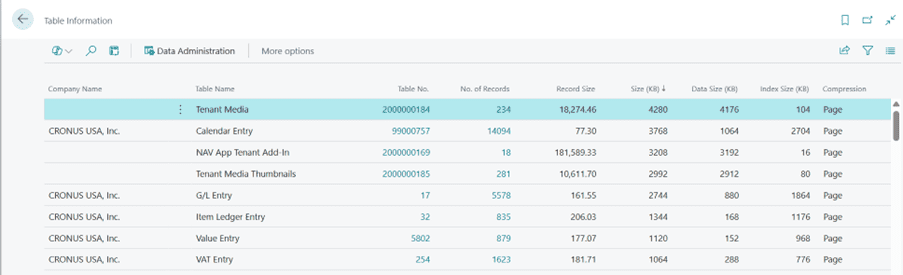
Click on Table No. column to open the new page “Table Data management” based on the virtual table “Database Index”.
On the Table Data Management page, set the Company Name field to the company for which you want to view indexes. If the Company Name field is empty, the table is used by all companies.
You can Turn index On/Off for the specific company only or for all companies. The Indexes section displays details of each index on table for the selected company, including index storage size, index usage statistics, and index type.
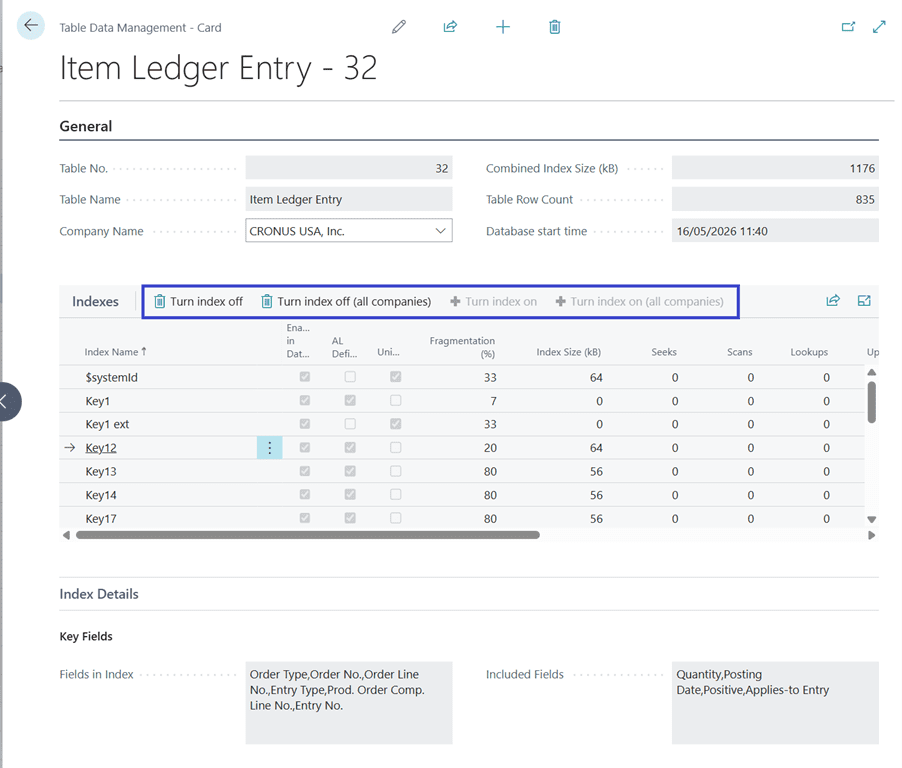
Note:
- Unique indexes, primary keys, SIFT, and $systemid indexes are protected and can’t be turned off.
- Disabling an index takes effect immediately. Enabling an index is queued for the next scheduled midnight process.
Refer below link for Migrating from SIFT to Nonclustered Columnstore Indexes.
Thanks!!
Please follow and subscribe. Share your thoughts in the comments.!!