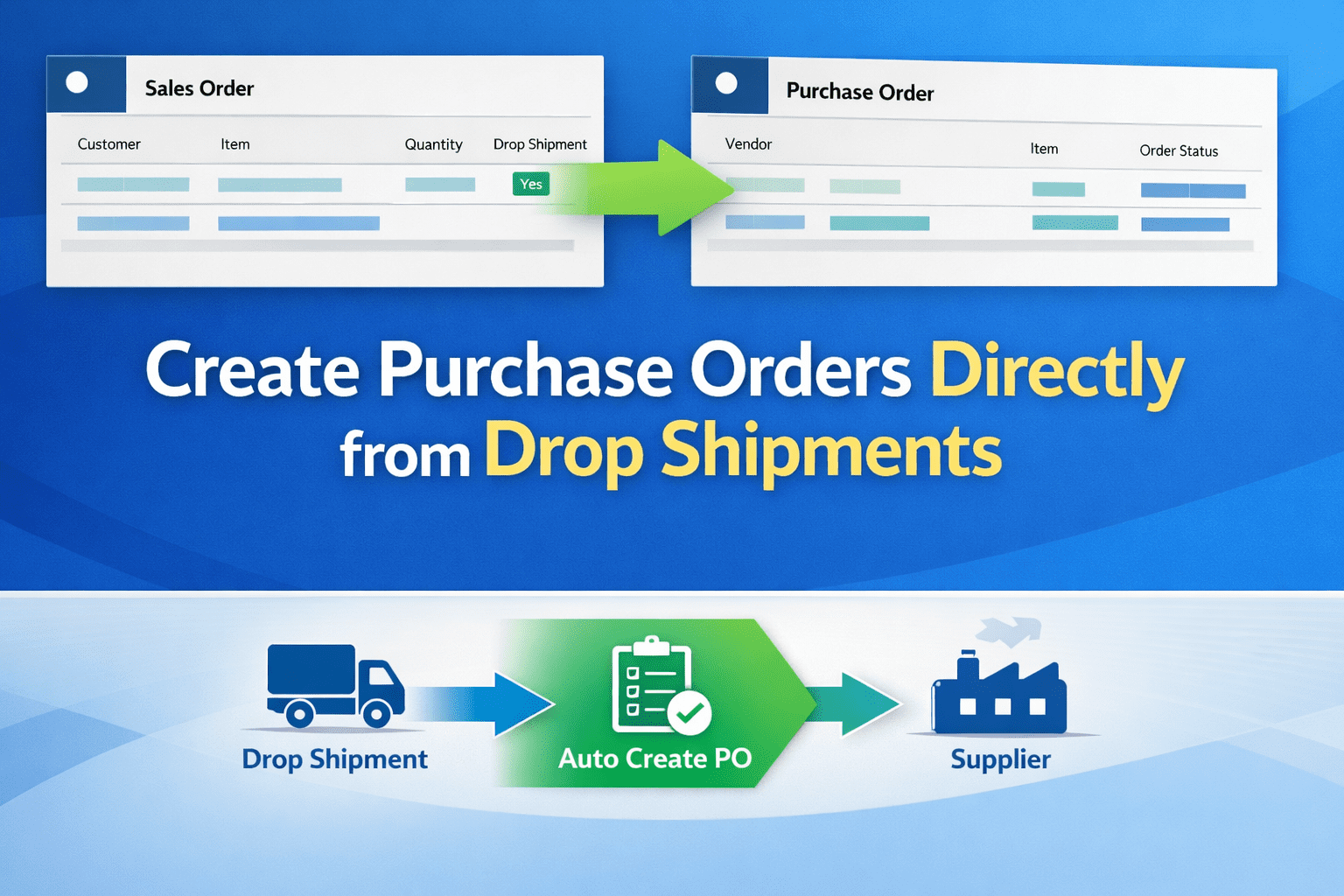
Dynamics 365 Business Central 2026 Wave 1 (BC Version 28): Directly Create purchase Order from Drop shipment.
Hi Folks,
As we all know Drop Shipment in Microsoft Dynamics 365 Business Central is a process where you sell goods to a customer, but instead of shipping from your own warehouse, your vendor ships directly to the customer. Below is the link how it works.
https://relgyatech.com/business-central-drop-shipment-order/
With Dynamics 365 Business Central 2026 Wave 1 (BC Version 28) Microsoft added capability of creating the purchase order directly from sales order.
Let’s see how it works.
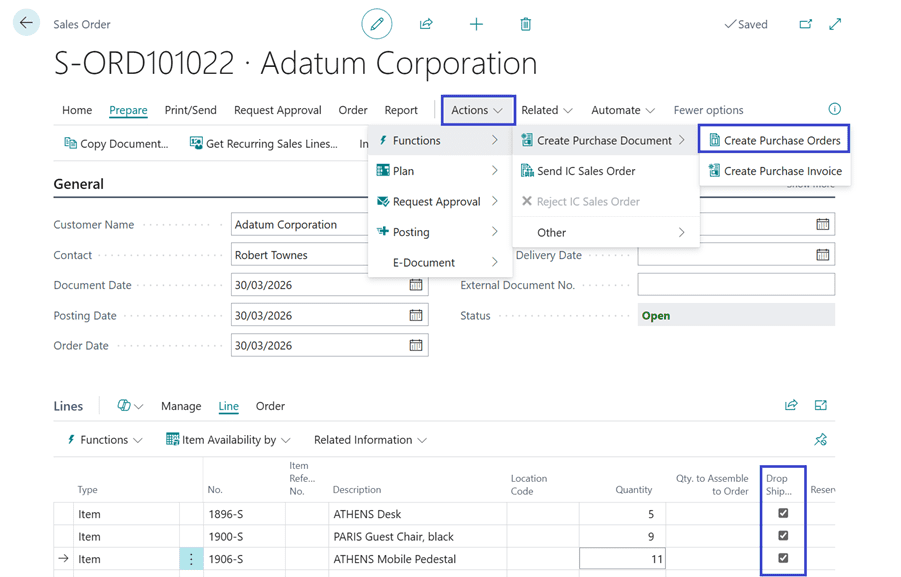
Create a new Sales order On Tell me search (Shortcut ALT+Q), search for Sales Order. Enter few items with Replenishment System to Purchase on item card.
Add a Drop Shipment field from Personalization (By Default its invisible) and check mark the drop shipment lines. Click on “Create Purchase Orders”
The system suggested the PO lines. The Vendor is automatically populated from the Vendor No. field on Item card. However, you can change the Vendor and Quantity to Purchase.
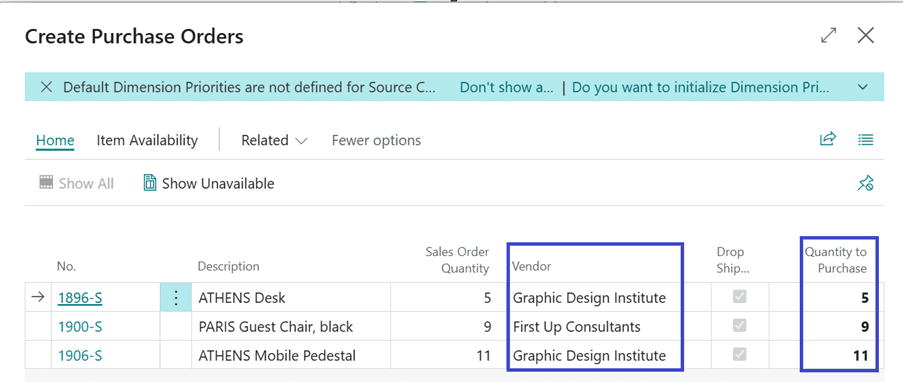
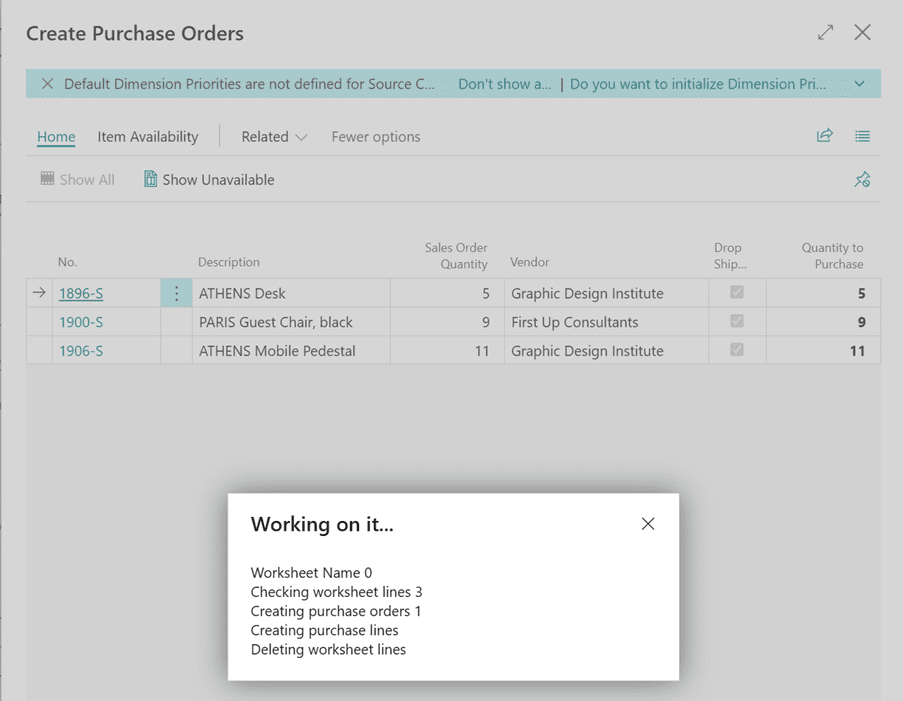
Once hit OK, the system will create the Purchase Order Grouped by Vendor.
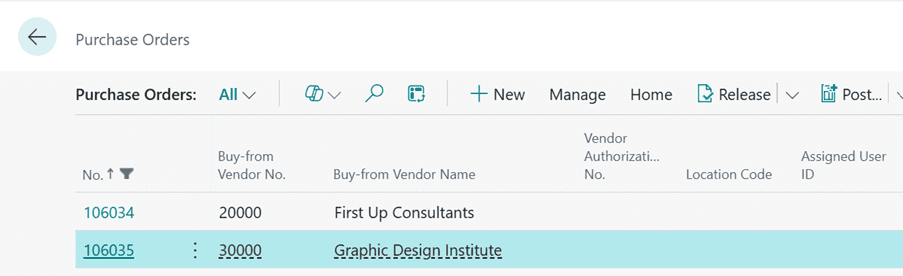
Created Purchase Orders:
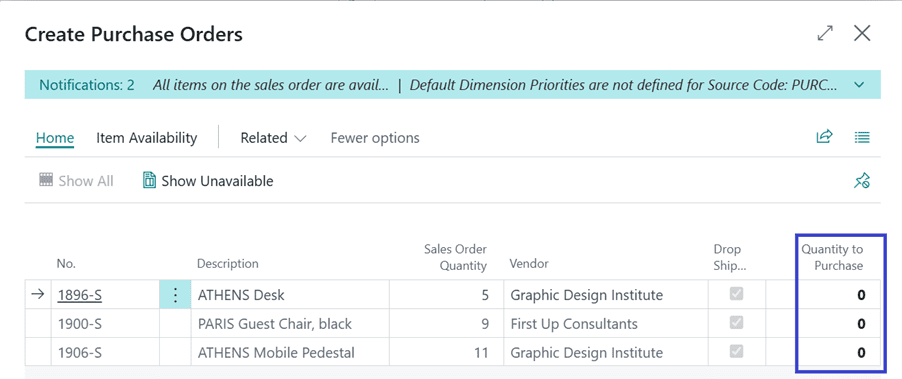
Once the PO is created the “Quantity to Purchase” is reset to 0.
Note: The Drop shipment marked lines are considered on Order Planning and Planning Worksheet.
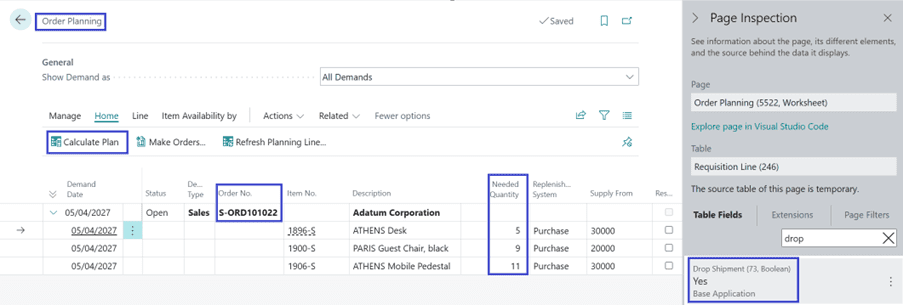
Order Planning: On Tell me search (Shortcut ALT+Q) search for Order Planning. Click on action Calculate Plan. Do a page Inspection (Shortcut alt + ctrl + F1) and search for Drop Shipment field, you will notice its enabled.
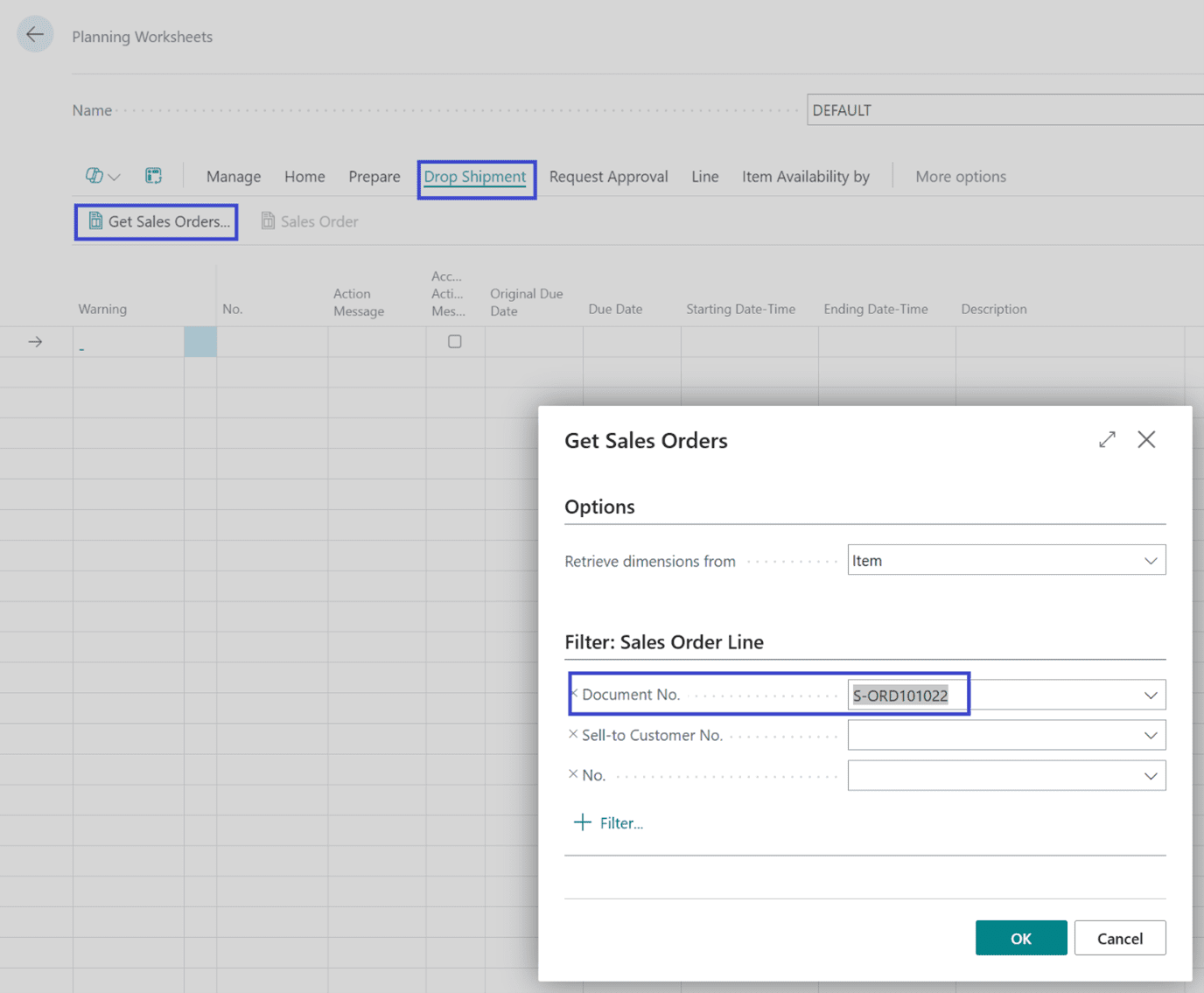
Planning Worksheet: On Tell me search (Shortcut ALT+Q) search for Planning Worksheet. Click on new action Drop Shipment -> Get Sales Orders. You can filter on specific Sales Order OR complete sales demand.
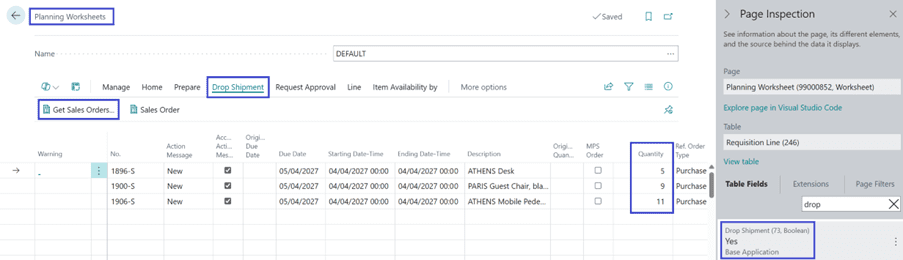
Planning Worksheets lines get populated and drop shipment lines are included. Do a page Inspection (Shortcut alt + ctrl + F1) and search for Drop Shipment field, you will notice its enabled.
Thanks!!
Please follow and subscribe. Share your thoughts in the comments.!!